
AI for data analysis has shifted from experimental technology to core business capability. Professionals who once spent entire days manipulating spreadsheets now accomplish the same work in minutes using intelligent automation.
If you still clean datasets manually, write complex formulas from memory, or build pivot tables through trial and error, this guide will transform your workflow. The integration of Excel with modern AI platforms enables sophisticated analysis without requiring statistics degrees or programming knowledge.
Whether you analyze marketing campaigns, forecast financial performance, or extract insights from customer feedback, these seven tutorials provide immediately applicable techniques. Each workflow combines Excel’s computational power with AI’s pattern recognition to deliver results 60-80% faster than traditional methods.
- The Business Case for AI-Powered Analysis
- Tutorial 1: Intelligent Data Preparation and Cleaning
- Tutorial 2: Conversational Data Exploration
- Tutorial 3: Automated Predictive Modeling
- Tutorial 4: Discovering Hidden Patterns in Complex Data
- Tutorial 5: Self-Updating Intelligence Reports
- Tutorial 6: Understanding Customer Sentiment at Scale
- Tutorial 7: Identifying Outliers and Irregularities
- Platform Comparison: Choosing Your AI Stack
- Implementation Roadmap for Teams
- Pitfalls That Undermine Analytical Rigor
- Communicating Findings to Decision Makers
- Frequently Asked Questions
The Business Case for AI-Powered Analysis
Traditional analytical workflows follow predictable sequences: acquire data, validate quality, explore relationships, construct models, present findings. Each phase demands specific competencies and consumes substantial time. A standard monthly performance review might require half a working day.
AI for data analysis compresses these timelines through machine learning capabilities that:
- Automatically detect and correct data inconsistencies
- Recommend appropriate visualizations based on variable types
- Surface correlations invisible through manual examination
- Compose narrative summaries of statistical findings
- Project future outcomes with quantified uncertainty
Organizations deploying AI-enhanced analytics report decision cycles 40% faster, forecasting precision improvements of 35%, and measurable reductions in human error. These advantages materialize only when theory translates into practiced application.
The following workflows demonstrate concrete implementation across common business scenarios.
Tutorial 1: Intelligent Data Preparation and Cleaning
Scenario: Your team receives a customer registry containing 5,000 records plagued by formatting inconsistencies, duplicate registrations, incomplete fields, and data entry errors. Manual remediation would consume 3-4 hours monthly.
Approach: Leverage Excel’s intelligent data transformation engine combined with pattern recognition.
Implementation Steps:
Phase 1: Access Transformation Tools
- Navigate to Data ribbon → Get & Transform → From Table/Range
- The query editor interface launches
Phase 2: Eliminate Redundant Records
- Identify columns defining record uniqueness (Customer Identifier, Email Address)
- Right-click selection → Remove Duplicates
- The system applies fuzzy logic to catch variations like “St.” versus “Street”
Phase 3: Normalize Text Conventions
- Highlight text-based columns → Transform → Format → Clean
- This strips extraneous whitespace and non-printable characters
- Apply “Title Case” transformation for proper names
Phase 4: Address Gaps Using Pattern Recognition
- Access the Ideas button (Home ribbon → Ideas)
- The intelligence engine examines existing patterns
- It recommends completing missing postal codes based on city information
- Review suggestions before accepting
Phase 5: Flag Statistical Anomalies
- Apply Data → Data Validation to surface outliers
- The system highlights values exceeding logical boundaries (negative revenue, ages exceeding 120)
Documented Outcome: A digital marketing agency reduced their monthly contact list preparation from 240 minutes to 25 minutes implementing this methodology.
Efficiency Hack: Preserve your transformation sequence as a reusable template. Subsequent months require only data refresh for automatic reapplication.
Tutorial 2: Conversational Data Exploration
Scenario: Leadership requests immediate answers: “Which service line showed strongest growth last quarter?” Traditionally, you would construct pivot tables, apply date filters, compute percentage changes—a 15-20 minute process.
Approach: Utilize Excel’s natural language interrogation capability (Microsoft 365 feature).
Implementation Steps:
Phase 1: Structure Your Dataset
- Highlight your information → Press Ctrl+T → Confirm Table Creation
- Assign a descriptive identifier (QuarterlySales)
Phase 2: Activate Intelligence Panel
- Select Home ribbon → Ideas (alternatively press Alt+F1)
- An analysis pane appears右侧
Phase 3: Pose Questions Conversationally Enter: “Display total bookings by service category for Q4 2025”
Phase 4: Examine Auto-Generated Visualizations
- The system produces a chart instantly
- Select “Insert” to embed in your worksheet
Phase 5: Iterate with Refinements
- “Break this down by geographic region”
- “Show month-over-month percentage change”
Advanced Application: Integrate with conversational AI for queries exceeding Excel’s native capabilities.
Sample workflow:
- Export dataset to CSV format
- Upload to ChatGPT (for non-sensitive data) or Microsoft Copilot
- Request: “Examine this sales information and surface the three most significant trends with quantitative support”
- Transfer insights back to Excel for graphical representation
Documented Application: A retail intelligence analyst decreased response time for spontaneous requests from 30 minutes to under 3 minutes through natural language interrogation.
Tutorial 3: Automated Predictive Modeling
Scenario: You must project upcoming quarter revenue based on historical patterns. Statistical modeling intimidates you, and Excel’s FORECAST functions seem complex.
Approach: Excel’s Forecast Sheet functionality employs machine learning to automatically select optimal algorithms.
Implementation Steps:
Phase 1: Organize Historical Information
- Column A: Time periods (must follow chronological order)
- Column B: Target metric (sales figures, unit volumes, etc.)
- Minimum requirement: 3 historical periods; recommendation: 12 or more
Phase 2: Generate Forecast Workbook
- Highlight both columns
- Select Data ribbon → Forecast Sheet
- Pick line graph or bar chart visualization
Phase 3: Adjust Forecast Parameters
- Projection End Date: When do predictions need to conclude?
- Confidence Interval: Maintain at 95% (system calculates range automatically)
- Seasonality Detection: AI identifies recurring patterns autonomously
Phase 4: Examine Model Selection
- Excel displays chosen algorithm (Triple Exponential Smoothing, etc.)
- Click “Statistics” to view precision measurements
- MAPE (Mean Absolute Percentage Error) under 10% indicates excellent fit
Phase 5: Interpret Outputs
- Fresh worksheet generates containing historical plus projected data
- Shaded region represents confidence bounds
- Manually adjust seasonality if business knowledge dictates
Concrete Example: A software-as-a-service organization predicted monthly recurring revenue with 94% accuracy three months ahead, enabling informed recruitment planning.
Pro Tip: Refresh forecasts monthly incorporating actual results. Predictive models strengthen with additional training observations.
Related reading: For coordinating recurring analysis tasks, consult our resource on AI scheduling tools for automated reminders and calendar orchestration.
Tutorial 4: Discovering Hidden Patterns in Complex Data
Scenario: You possess 50,000 transaction records requiring pattern identification. Human analysis proves impossible at this scale.
Approach: Merge Excel’s grouping capabilities with AI-driven visualization platforms.
Implementation Steps:
Phase 1: Prepare Variables for Clustering
- Select pertinent numerical fields (transaction value, purchase frequency, days since last purchase)
- Normalize values: (Observation – Minimum) / (Maximum – Minimum)
- This prevents magnitude disparities from dominating results
Phase 2: Activate Group Detection
- Install Analysis ToolPak (File → Options → Add-ins → Check Analysis ToolPak)
- Data Analysis → Cluster Analysis (when available)
- Alternatively deploy third-party AI extensions like Analyze in Excel
Phase 3: Alternative Method – Leverage Power BI’s Intelligence Visuals
- Import Excel information to Power BI (complimentary version)
- Deploy “Key Influencers” visualization
- AI autonomously determines drivers of your target metric
Phase 4: Decode Outputs
- Group 1: Premium customers, frequent purchasers (VIP segment)
- Group 2: Mid-tier value, intermittent buyers (development opportunity)
- Group 3: Minimal value, single transactions (reactivation candidates)
Phase 5: Generate Actionable Categories
- Reintegrate cluster assignments into original Excel workbook
- Deploy for precision marketing, differentiated pricing
Business Outcome: An online retailer uncovered a concealed segment purchasing exclusively during promotional periods, enabling targeted campaign strategy that lifted revenue 23%.
Tutorial 5: Self-Updating Intelligence Reports
Scenario: You generate identical weekly sales summaries every Monday: pivot configurations, graphical elements, narrative commentary. The process consumes 2 hours and represents mind-numbing repetition.
Approach: Construct an AI-enabled template producing reports autonomously.
Implementation Steps:
Phase 1: Build Master Framework
- Configure pivot tables with all necessary perspectives
- Design charts linked to pivot sources
- Maintain data source as table format (not static range)
Phase 2: Deploy Ideas for Narrative Creation
- Following data refresh, activate Ideas
- Intelligence generates key observations automatically
- Transfer insights to report narrative section
Phase 3: Automate Distribution via Power Automate (Microsoft 365)
- Build workflow: When fresh data lands in SharePoint → Refresh Excel → Email stakeholders
- Visual workflow designer requires no programming
Phase 4: Incorporate AI-Powered Commentary via ChatGPT
- Develop prompt framework: “Evaluate these performance metrics and compose a 3-paragraph executive briefing emphasizing trends, concerns, and recommended actions”
- Insert your metrics
- Transfer AI-composed summary to report
Phase 5: Configure Automatic Updates
- Data → Queries & Connections → Properties
- Enable “Refresh every X minutes”
- Or refresh upon file opening
Time Recovered: From 120 minutes to 15 minutes (review and transmit only).
Sophisticated Technique: Employ Excel’s WEBSERVICE function to retrieve live information from APIs, rendering reports genuinely real-time.
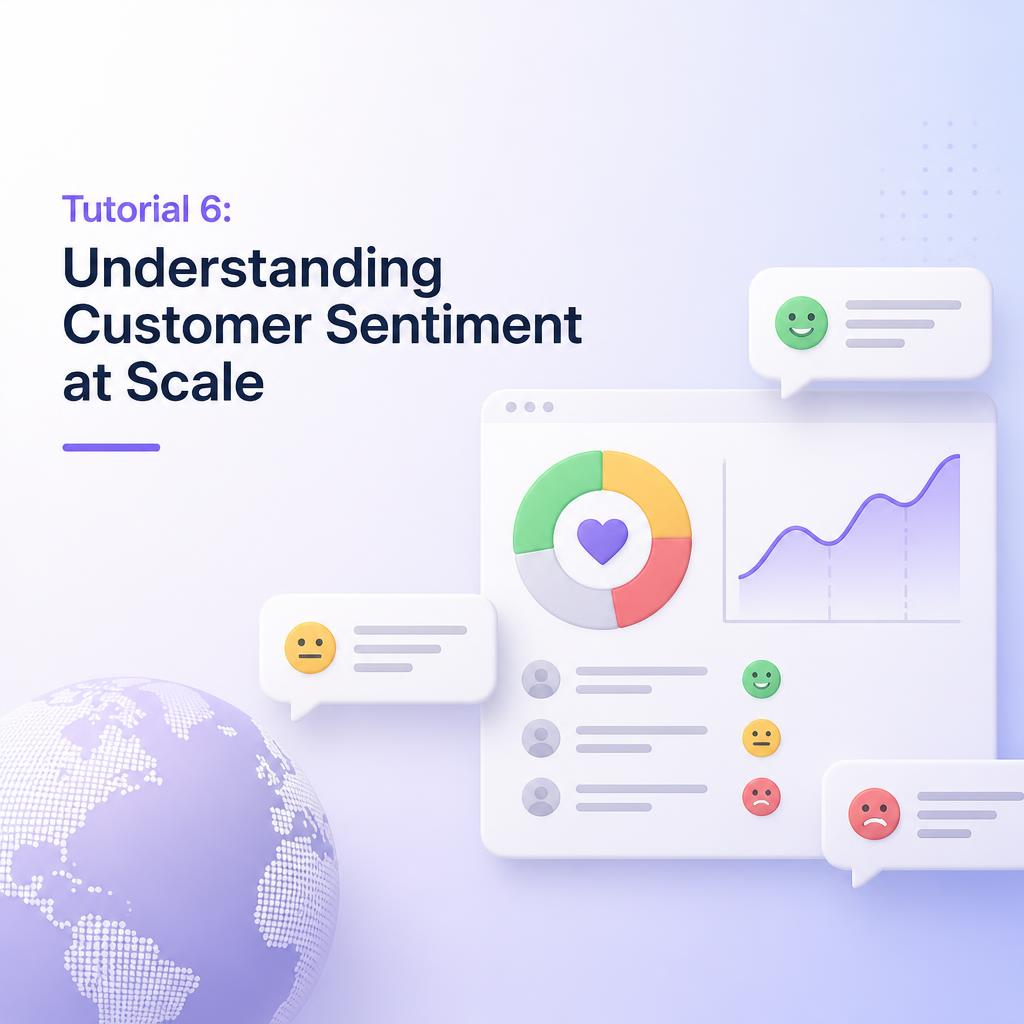
Tutorial 6: Understanding Customer Sentiment at Scale
Scenario: You possess 2,000 customer survey responses containing open-ended commentary. Comprehensive reading proves impossible, yet you must comprehend sentiment trajectories.
Approach: Deploy AI-enabled sentiment classification directly within Excel.
Implementation Steps:
Phase 1: Install Intelligence Extension
- Navigate to Insert → Get Add-ins
- Search “Text Analytics” or “Azure AI”
- Install Microsoft’s Text Analytics for Excel (complimentary tier exists)
Phase 2: Organize Textual Information
- Column A: Customer verbatim responses
- Verify text cleanliness (eliminate special characters disrupting formulas)
Phase 3: Execute Sentiment Classification
- Highlight text column
- Add-in → Analyze Sentiment
- AI produces: Positive/Negative/Neutral classification (0-1 scale)
Phase 4: Build Sentiment Dashboard
- Pivot configuration: Frequency by sentiment classification
- Visualization: Sentiment trajectory across time
- Filtering: Display exclusively negative responses for examination
Phase 5: Extract Dominant Themes
- Utilize AI’s key phrase extraction capability
- Identifies recurring subjects: “delivery delay,” “merchandise quality,” “support experience”
Practical Application: A hospitality corporation examined 10,000 guest evaluations in 20 minutes, determining that “morning meal quality” influenced overall satisfaction more significantly than room cleanliness, prompting focused enhancements.
Alternative for Confidential Information: Employ Excel’s native formula with ChatGPT API (demands basic configuration but maintains data governance).
Tutorial 7: Identifying Outliers and Irregularities
Scenario: You oversee production metrics or digital performance indicators requiring immediate unusual pattern detection. Human examination overlooks subtle irregularities.
Approach: Excel’s intelligence-powered irregularity identification.
Implementation Steps:
Phase 1: Structure Temporal Data
- Column A: Time markers (hourly, daily intervals)
- Column B: Indicator to monitor (defect percentage, page speed)
Phase 2: Activate Irregularity Detection
- Highlight information → Insert → Line Graph
- Select chart → Chart Design → Add Chart Element → Trendline
- Or utilize Power BI’s Irregularity Detection visual (more sophisticated)
Phase 3: Adjust Detection Threshold
- Low threshold: Only substantial outliers flagged
- High threshold: Captures subtle deviations
- Commence with medium, modify based on false positive rate
Phase 4: Establish Notifications
- Conditional Formatting → New Rule
- Formula: =IF(irregularity_score > threshold, TRUE, FALSE)
- Color cells in red
Phase 5: Analyze Underlying Causes
- When irregularity detected, AI displays contributing elements
- Record findings to enhance future detection
Organizational Impact: A transportation enterprise decreased delivery failures by 34% after intelligence detected that delays peaked every Thursday afternoon, prompting schedule modifications.
Platform Comparison: Choosing Your AI Stack
While Excel’s native intelligence features deliver substantial power, specialized platforms extend capabilities further:
Microsoft Copilot for Microsoft 365
- Conversational commands within Excel environment
- “Generate a pivot table displaying revenue by territory”
- Investment: $30/user/month (included with Enterprise)
- Optimal for: Organizations already utilizing Microsoft ecosystem
- Official resource: https://copilot.microsoft.com
- ChatGPT Advanced Data Analysis
- Upload Excel workbooks directly
- Pose sophisticated questions conversationally
- Generates graphics, surfaces patterns
- Investment: $20/month (ChatGPT Plus subscription)
- Optimal for: Ad-hoc deep exploration, investigative work
- Official resource: https://chat.openai.com
- Code-free predictive intelligence
- Drag-and-drop interface design
- Connects with Excel via CSV
- Investment: Starting $49/month
- Optimal for: Business professionals lacking technical background
- Official resource: https://www.akkio.com
- Text examination and sentiment classification
- Excel extension available
- Pre-trained models for standard applications
- Investment: Complimentary tier, paid plans from $299/month
- Optimal for: Large-scale textual examination
- Official resource: https://monkeylearn.com
- Conversational data interrogation
- Upload spreadsheet, dialogue with your information
- Automatic graphic generation
- Investment: Complimentary tier, Professional $19/month
- Optimal for: Rapid insights without learning curves
- Official resource: https://julius.ai
Select platforms based on particular requirements: textual examination demands different capabilities than numerical projection.
Implementation Roadmap for Teams
Deploying AI for data analysis effectively demands more than tool familiarity. You require a systematic methodology:
Stage 1: Current State Evaluation (Week 1)
- Inventory existing analysis activities
- Pinpoint repetitive, time-intensive procedures
- Rank by time recovery potential
- Commence with 1-2 high-impact applications
Stage 2: Platform Evaluation (Week 2)
- Align tools with applications
- Consider data confidentiality requirements
- Assess budget parameters
- Begin with complimentary trials before commitment
Stage 3: Pilot Execution (Weeks 3-4)
- Apply intelligence to one genuine project
- Record time recovered versus conventional methods
- Quantify precision enhancements
- Collect stakeholder input
Stage 4: Process Documentation (Month 2)
- Develop templates for recurring examinations
- Document workflows sequentially
- Educate team members
- Establish quality assurance protocols
Stage 5: Expansion (Month 3+)
- Broaden to additional applications
- Combine multiple platforms
- Automate report distribution
- Continuously refine based on outcomes
Fundamental Principle: Intelligence augments human judgment; it does not substitute it. Always scrutinize AI-generated observations critically before determining courses of action.
Pitfalls That Undermine Analytical Rigor
Even seasoned analysts commit these errors when employing AI for data analysis:
1. Uncritical Acceptance of AI Outputs Intelligence models can err. Continuously validate projections against established outcomes. Examine confidence bounds. Challenge unexpected findings.
2. Disregarding Data Quality “Flawed input, flawed output” applies doubly to intelligence. If source information contains errors, AI will confidently generate incorrect observations. Purify data initially.
3. Model Over-Complexity Sophisticated intelligence models can memorize randomness rather than learning patterns. Employ simpler models when feasible. Validate using holdout data.
4. Overlooking Business Context AI perceives numbers, not operational reality. A 50% revenue increase appears excellent until you discover it originated from a one-time asset disposition. Always incorporate human context.
5. Inadequate Documentation Six months forward, you will not recall why you selected specific parameters. Document your methodology, assumptions, and information sources.
6. Confidentiality Breaches Uploading sensitive customer information to public intelligence tools violates GDPR and other regulations. Employ enterprise platforms with data processing agreements for confidential material.
7. Analysis Paralysis Intelligence generates endless observations. Concentrate on actionable findings that drive determinations. Additional analysis is not invariably superior.
Communicating Findings to Decision Makers
Superior analysis proves worthless if stakeholders disregard it. Effective presentation distinguishes impactful analysts from ignored data processors.
Structure Your Discoveries:
Executive Briefing (1 paragraph)
- Primary finding
- Organizational impact
- Suggested action
Supporting Evidence (visual)
- Graphic displaying trend or comparison
- Emphasize the insight visually
- Maintain simplicity: one message per graphic
Context and Interpretation
- What does this signify for the organization?
- How does it compare to benchmarks?
- What are the limitations?
Actionable Recommendations
- Concrete next steps
- Responsible party and timeline
- Success indicators
Illustration:
❌ Ineffective: “Customer satisfaction scores decreased 12% this quarter.”
✅ Effective: “Customer satisfaction declined 12% (from 4.2 to 3.7), primarily driven by shipping delays. This correlates with a 23% increase in support tickets. Recommendation: Partner with secondary logistics provider for peak season. Expected impact: Restore satisfaction to 4.0+ within 2 months.”
Visual Best Practices:
- Employ color purposefully (red for problems, green for opportunities)
- Label directly on graphics (avoid legends when feasible)
- Remove chart junk (3D effects, unnecessary gridlines)
- Narrate a story: problem → analysis → solution
AI-Powered Presentation Platforms:
- Utilize Gamma.app or Tome.app to generate presentation decks from your Excel insights
- Paste key findings, AI creates professional slides in minutes
Frequently Asked Questions
Do I require programming competencies to use AI for data analysis?
Negative. Contemporary intelligence tools for Excel target non-technical audiences. Natural language interfaces, point-and-click wizards, and pre-constructed templates eliminate coding necessity. However, fundamental Excel proficiency (formulas, pivot tables) remains essential.
How precise are AI-generated projections?
Precision varies by information quality and predictability of the domain. For stable, historical patterns (monthly sales with clear seasonality), intelligence achieves 85-95% precision for short-term projections (1-3 months). For volatile or unprecedented situations (new product introductions, market disruptions), precision drops to 60-75%. Continuously review confidence bounds.
Can AI for data analysis substitute human analysts?
Negative. Intelligence excels at pattern recognition, velocity, and handling large volumes. Humans excel at context, judgment, and posing the right questions. The most effective analysts employ intelligence as a force multiplier, managing routine examination while focusing human effort on interpretation and strategy.
Is my information secure when using intelligence tools?
It depends on the platform. Microsoft Copilot and enterprise intelligence platforms offer data processing agreements and compliance certifications (SOC 2, GDPR). Public tools like complimentary ChatGPT may utilize your information for training. For sensitive material, employ enterprise platforms, on-premises solutions, or anonymize information before examination.
What investment does AI for data analysis require?
Range: Complimentary to $100+/user/month.
- Excel’s built-in intelligence: Included with Microsoft 365 ($6.99-$22/user/month)
- ChatGPT Plus: $20/month
- Microsoft Copilot: $30/user/month
- Specialized platforms (Akkio, MonkeyLearn): $49-$299/month Commence with complimentary tiers and Excel’s native features before investing in premium platforms.
What represents the quickest path to learn AI for data analysis?
Practical application surpasses theory. Select one genuine dataset from your work and apply one tutorial from this guide. Struggle through it. Search for error solutions. Participate in communities (r/excel, Microsoft Tech Community). Repeat with progressively complex projects. You will acquire more in 2 weeks of practice than 2 months of tutorials.
Can I employ AI for data analysis on Mac systems?
Affirmative, but with constraints. Excel for Mac possesses most intelligence features (Ideas, Forecast Sheet). However, some advanced platforms (Power Query, certain extensions) function better on Windows. Cloud-based platforms (ChatGPT, Julius AI) operate identically on any platform.