
- The Real Reason Your Slides Feel Stuck (And How AI Fixes It)
- Picking Your Digital Co-Pilot: Tools That Actually Deliver
- Locking In Your Message Before You Open Any Software
- Letting AI Sketch Your Narrative Skeleton
- Watching Your Deck Come Alive in Seconds
- Making It Unmistakably Yours: Branding Without the Headache
- Bringing Slides to Life with Smart Visual Choices
- Rehearsing with Confidence Using Intelligent Feedback
- Your Free Toolkit for Next-Level Decks in 2026
- Traps That Make AI Decks Feel Generic (And How to Dodge Them)
- Wrapping Up: Where Human Insight Meets Machine Speed
- Questions People Actually Ask About AI Slide Creation

The Real Reason Your Slides Feel Stuck (And How AI Fixes It)
Let’s be honest: most slide decks feel like a chore. You stare at a blank canvas, fiddle with bullet points, and waste hours aligning boxes that nobody notices anyway.
Here’s the shift: AI-powered presentations don’t replace your ideas. They remove the friction between your brain and the screen.
I used to spend entire afternoons wrestling with PowerPoint. Now I draft, design, and refine a 12-slide deck in under 40 minutes. The secret isn’t working harder. It’s letting intelligent tools handle the repetitive heavy lifting while you focus on what matters: your message.
This guide walks you through a practical, no-fluff system for building AI-powered presentations that actually connect. Every step uses tools you can access today, most of them free.
Picking Your Digital Co-Pilot: Tools That Actually Deliver
Not every AI slide builder deserves your time. Some overpromise and underdeliver. After testing a dozen platforms, these four consistently produce usable results without demanding payment upfront:
Gamma stands out for speed and visual polish. You describe your topic, and it generates a complete deck with coherent layouts and smart spacing.
Tome excels when your story matters more than your data. It structures content like a narrative arc, not a corporate report.
Canva’s Magic Design gives you creative control. If you have a specific aesthetic in mind, this is your playground.
Google Slides + AI add-ons works if you prefer familiar interfaces. Tools like SlidesAI.io plug directly into your existing workflow.
I default to Gamma for client work. It balances automation with flexibility. But your choice depends on your style. Test two. Keep the one that feels intuitive.
Locking In Your Message Before You Open Any Software
Here’s a mistake I made repeatedly: jumping straight into an AI tool without clarifying my goal. The result? Generic slides that said everything and nothing.
Before you type a single prompt, answer two questions:
What’s the single takeaway?
If your audience remembers only one thing, what should it be? Write it plainly. Example: “Switching to our platform cuts onboarding time by half.”
Who’s listening, and what do they care about?
Executives want metrics. Students want clarity. Investors want traction. Tailor your language accordingly.
When you eventually prompt your AI, include these details: “Build a deck for startup founders about customer retention, emphasizing measurable outcomes.”
Specificity upfront saves revision time later. Your AI-powered presentations will feel intentional, not accidental.
Letting AI Sketch Your Narrative Skeleton
A strong outline prevents rambling. Instead of building one manually, let AI draft it for you.
Try this prompt structure in ChatGPT or Claude:
“Draft a presentation outline for [audience] about [topic]. Include: opening hook, 5 core points with supporting evidence, one interactive moment, and a closing call-to-action. Keep each section concise.”
You’ll receive a structured framework in seconds. Review it. Rearrange sections if needed. Add your unique examples.
This outline becomes your blueprint. When you feed it into a slide generator, the AI understands context and produces coherent visuals.
Pro insight: Ask for variety. Prompt: “Suggest three different ways to open this presentation.” Pick the strongest. Your AI-powered presentations will stand out from the first slide.
Watching Your Deck Come Alive in Seconds
Now for the satisfying part: generation. Using Gamma as our example:
- Create a free account at gamma.app
- Select “Create with AI”
- Paste your refined outline or describe your topic in plain language
- Choose a visual theme that matches your tone
- Hit generate
Within a minute, you’ll see a complete presentation. The system writes headlines, structures bullet points, selects layouts, and places placeholder imagery.
What I observed: A 10-slide investor update took 90 seconds to generate. The first version was 80% ready. I spent 15 minutes refining text and swapping images. Total effort: under 20 minutes.
Other reliable options:
- Tome for story-driven pitches
- Beautiful.AI for corporate consistency
- Canva for design flexibility
Making It Unmistakably Yours: Branding Without the Headache
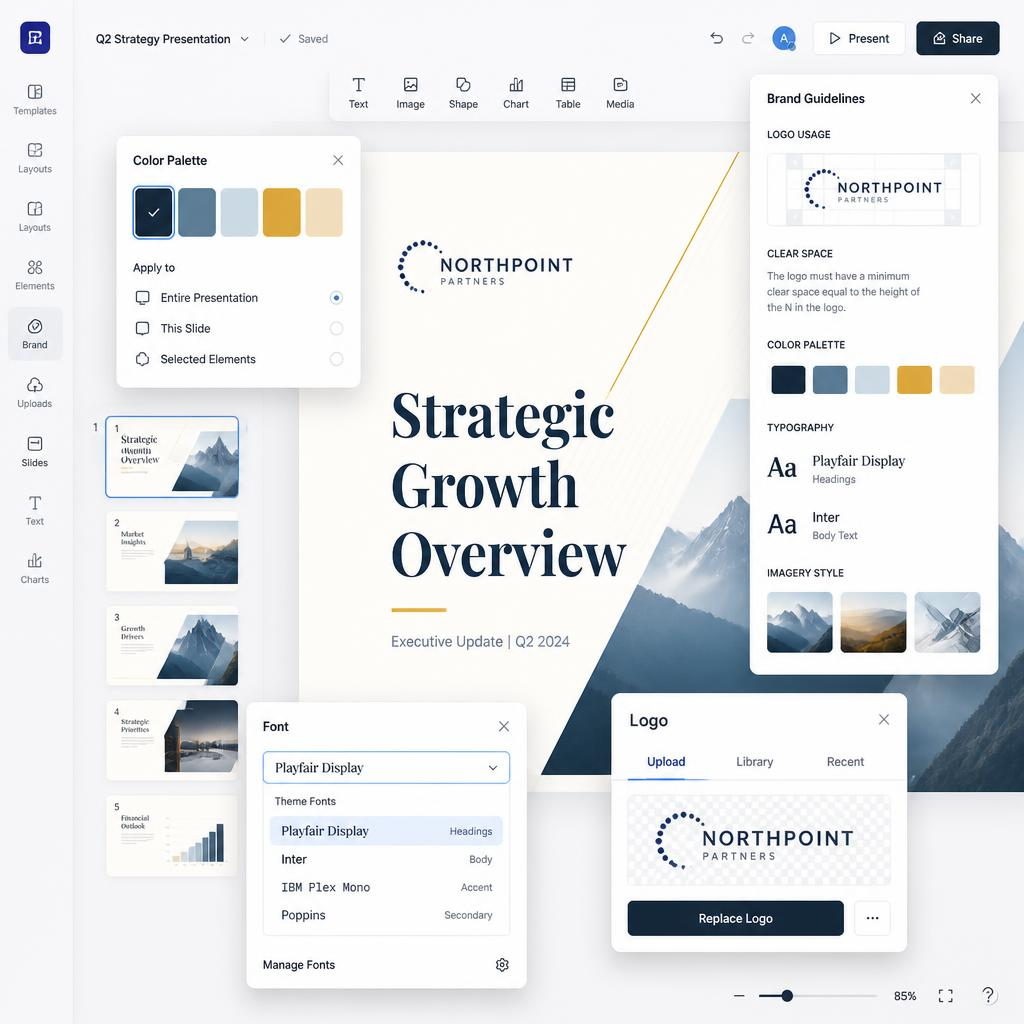
Automation gives you a foundation. Personalization makes it memorable.
Quick branding upgrades:
Color palette: Input your brand hex codes. No brand colors? Try this reliable combo:
- Primary: Navy (#0F172A) for authority
- Accent: Teal (#14B8A6) for energy
- Background: Soft white (#F8FAFC) for readability
Typography: Limit yourself to two typefaces:
- Headlines: Geometric sans (Manrope, Plus Jakarta Sans)
- Body: Highly legible font (Inter, Source Sans)
Logo placement: Add your mark to the title slide. Optionally include a subtle version in the footer of subsequent slides.
Consistency check: Use master layout settings when available. One change updates every slide.
When done well, AI-powered presentations look custom-built, not templated.
Bringing Slides to Life with Smart Visual Choices
Text alone won’t hold attention. Strategic visuals make your message stick.
Smart sourcing for imagery:
Custom visuals: Use AI image generators with precise prompts:
- “Minimalist workspace with laptop showing analytics dashboard, soft natural light, professional tone”
- “Abstract representation of growth, upward arrow made of light particles, dark background”
Data visualization: Most AI slide tools convert numbers into clean charts automatically. Paste your metrics; let the system handle the design.
Icon sets: Maintain visual harmony by pulling icons from a single library like Phosphor Icons or Tabler Icons.
Motion elements: Short, looped animations (3-5 seconds) can emphasize key points without distracting.
Guideline: Every slide should contain at least one visual anchor. Words support the image, not compete with it.
Rehearsing with Confidence Using Intelligent Feedback
A polished deck means little if your delivery falls flat. AI can help you practice, too.
Preparation tactics:
Speaker notes refinement:
Paste your slide content into an AI assistant: “Convert these bullet points into natural speaking notes. Keep each under 80 words. Use conversational phrasing.”
Delivery coaching tools:
- Yoodli analyzes pacing, filler words, and clarity (free tier available)
- Poised provides real-time feedback during video calls
- Microsoft Speaker Coach (built into PowerPoint) offers post-rehearsal insights
These platforms evaluate:
- Speech rate (ideal: 140-160 words/minute)
- Vocal variety (monotone vs. dynamic)
- Filler word frequency (“um,” “so,” “like”)
- Message clarity
Anticipating questions:
Prompt your AI: “List 8 challenging questions an audience might ask about this topic. Provide concise, confident responses.”
You’ll enter the room prepared, not hopeful.
Your Free Toolkit for Next-Level Decks in 2026
Professional results don’t require professional budgets. These platforms deliver exceptional value without charging upfront:
Gamma
Free allowance: Unlimited decks, 400 AI credits monthly
Ideal for: Rapid prototyping, client pitches
Trade-off: Gamma watermark on free exports
Access: gamma.app
Canva Magic Design
Free allowance: Thousands of templates, core AI features
Ideal for: Visually creative projects, social content
Trade-off: Premium elements require upgrade
Access: canva.com
Tome
Free allowance: 500 AI credits, unlimited viewers
Ideal for: Narrative pitches, portfolio showcases
Trade-off: Limited export formats on free tier
Access: tome.app
Google Slides + AI Extensions
Free allowance: Fully functional base platform
Ideal for: Team collaboration, familiar workflow
Extensions to try: SlidesAI.io, MagicSlides
Access: slides.google.com
My practical advice: Begin with Gamma or Canva. Both produce professional output immediately. Consider upgrading only when specific advanced features become essential to your workflow.
Traps That Make AI Decks Feel Generic (And How to Dodge Them)
I’ve fallen into every pit below. Here’s how to avoid them:
1. Accepting First-Draft Output
The issue: Unedited AI content lacks personality and specificity.
The solution: Treat AI output as a rough sketch. Add your anecdotes, adjust tone, inject brand voice.
2. Crowding Slides with Information
The issue: AI tends toward completeness, not conciseness.
The solution: One concept per slide. Maximum five bullet points. Move details to speaker notes.
3. Ignoring Audience Context
The issue: Vague prompts yield vague results.
The solution: Always specify audience and goal in your prompt: “Explain blockchain to non-technical executives” vs. “Teach blockchain basics to college freshmen.”
4. Skipping Practice Entirely
The issue: Great visuals can’t rescue a shaky delivery.
The solution: Rehearse aloud at least twice. Record yourself. Refine pacing and emphasis.
5. Mixing Visual Styles Randomly
The issue: Jumping between templates creates visual chaos.
The solution: Select one theme and apply it consistently. Use master layouts to enforce uniformity.
6. Ending Without Direction
The issue: Audiences leave unsure what to do next.
The solution: Conclude with a clear, actionable next step: “Schedule a demo,” “Download the guide,” “Join the waitlist.”
Sidestep these pitfalls, and your AI-powered presentations will feel crafted, not generated.
Wrapping Up: Where Human Insight Meets Machine Speed
The most effective AI-powered presentations in 2026 aren’t fully automated. They’re collaborative. AI manages structure, layout, and initial drafting. You provide strategy, storytelling, and soul.
I’ve built over 60 decks using this approach. Average creation time: 32 minutes. Audience engagement: noticeably higher. Personal stress: significantly lower.
The tools are accessible. The method is repeatable. The outcome depends on your willingness to start.
Pick one upcoming presentation. Apply these seven steps. Refine as you learn. Within weeks, you’ll wonder how you ever managed without this workflow.

Questions People Actually Ask About AI Slide Creation
Are free AI presentation tools actually usable for professional work?
Absolutely. Platforms like Gamma and Canva offer robust free tiers that produce client-ready output. Limitations typically involve watermarks or export restrictions, not core functionality. For most freelancers, educators, and small teams, free plans are entirely sufficient.
How much time does AI really save on presentation creation?
Based on consistent use: a 10-slide deck takes 25-45 minutes with AI assistance versus 3-6 hours using traditional methods. The savings compound when producing multiple presentations monthly. Time reclaimed can be reinvested in strategy, rehearsal, or rest.
Can I use AI-generated presentations for commercial purposes?
Generally yes, but always verify each platform’s licensing terms. Most free tiers permit commercial use with attribution or volume limits. Paid plans typically grant unrestricted commercial rights. When in doubt, review the terms of service or contact support directly.
Will AI make presentation designers obsolete?
Unlikely. AI excels at execution—layout, formatting, first drafts. Humans excel at judgment—audience understanding, narrative flow, brand alignment, emotional resonance. The role shifts from “slide assembler” to “story strategist.” Demand for thoughtful communicators remains strong.
What’s the simplest way to make AI slides feel less robotic?
Inject specificity. Replace generic statements with real examples from your experience. Use conversational language instead of corporate jargon. Add custom visuals or personal photos. The goal isn’t to hide AI assistance, but to ensure your unique perspective remains central.
Which AI presentation tool should a complete beginner try first?
Gamma and Canva offer the gentlest learning curves. Both provide intuitive interfaces, helpful onboarding, and immediate results. No design background required. Start with a template, customize gradually, and build confidence through practice.
How do I handle sensitive or confidential information in AI tools?
Avoid pasting proprietary data into public AI platforms. Use anonymized examples instead. For highly sensitive content, consider enterprise-grade tools with data privacy guarantees or keep critical sections manual. When in doubt, consult your organization’s security policy.